U.S. Pat. No. 8,667,395
Method and apparatus for creating video game and entertainment demonstrations with full preview and/or other features
AssigneeNintendo Co., Ltd.
Issue DateAugust 19, 2005
Illustrative Figure
Abstract
A computer system creates video game and movie demonstrations aids in the creation of viewable and/or playable demonstration software and storage media. Features include saving projects for demo purposes, previewing demos, previewing demo contents before creation on the final target, statistical data readouts, and directory structure updating and tracking.
Description
DETAILED DESCRIPTION FIG. 1shows an exemplary illustrative non-limiting implementation of a demo authoring and viewing arrangement1000. Arrangement1000includes one or more authoring stations1100and one or more viewing stations1200. In the example shown, authoring station1100may comprise a conventional personal computer or other development environment including a processor1102, a display1104, a user input device such as a keyboard1106, a mass storage device1108, and a mass media writer or other communications interface1110. Mass storage device1108may store source files, demo files, movie clips and tools—including an executable demo creation tool1112described below. Authors operate authoring station1100to create demos that are delivered to viewing stations1200for viewing. Delivery may be on storage media1300such as optical disks and/or downloaded over a network1400and/or via any convenient method. In one exemplary illustrative non-limiting implementation, authoring station1100may comprise a Pentium 3.1 GHz (or better) personal computer including 128 MB of RAM, Windows 2000/XP OS, Net Framework redistributable version 1.1 or above, Direct X 9.0 runtime or above, NPDP-GDEV Nintendo Gamecube Development system, Nintendo GameCube Software Development Kit, and Cygnus command line application GNUPro Toolkit. Other configurations for different gaming platforms and viewing stations are possible. Viewing stations1200may comprise for example a modified or unmodified view game playing system such as a Nintendo GameCube, Nintendo DS, Nintendo Revolution, a personal computer or other video game playing platform. An exemplary viewing station1200includes user input devices1204a,1204bsuch as handheld controllers (wireless, wired and/or tethered) that allow users to interact with the demo. Demo results are displayed on a display1206. In one particular illustrative non-limiting example, viewing station1200can comprise a walk-up kiosk within a suitable housing that suspends controllers1204at a convenient height such that gamers can walk up to the kiosk, select between different demos based on an onscreen displayed menu, and then play game demos, watch movie clips, or see other demo or promotional presentations. Such ...
DETAILED DESCRIPTION
FIG. 1shows an exemplary illustrative non-limiting implementation of a demo authoring and viewing arrangement1000. Arrangement1000includes one or more authoring stations1100and one or more viewing stations1200.
In the example shown, authoring station1100may comprise a conventional personal computer or other development environment including a processor1102, a display1104, a user input device such as a keyboard1106, a mass storage device1108, and a mass media writer or other communications interface1110. Mass storage device1108may store source files, demo files, movie clips and tools—including an executable demo creation tool1112described below. Authors operate authoring station1100to create demos that are delivered to viewing stations1200for viewing. Delivery may be on storage media1300such as optical disks and/or downloaded over a network1400and/or via any convenient method.
In one exemplary illustrative non-limiting implementation, authoring station1100may comprise a Pentium 3.1 GHz (or better) personal computer including 128 MB of RAM, Windows 2000/XP OS, Net Framework redistributable version 1.1 or above, Direct X 9.0 runtime or above, NPDP-GDEV Nintendo Gamecube Development system, Nintendo GameCube Software Development Kit, and Cygnus command line application GNUPro Toolkit. Other configurations for different gaming platforms and viewing stations are possible.
Viewing stations1200may comprise for example a modified or unmodified view game playing system such as a Nintendo GameCube, Nintendo DS, Nintendo Revolution, a personal computer or other video game playing platform. An exemplary viewing station1200includes user input devices1204a,1204bsuch as handheld controllers (wireless, wired and/or tethered) that allow users to interact with the demo. Demo results are displayed on a display1206.
In one particular illustrative non-limiting example, viewing station1200can comprise a walk-up kiosk within a suitable housing that suspends controllers1204at a convenient height such that gamers can walk up to the kiosk, select between different demos based on an onscreen displayed menu, and then play game demos, watch movie clips, or see other demo or promotional presentations. Such kiosks can be installed at retail (point of sale) outlets, trade shows, and other locations. However, other configurations for viewing station1200are also possible. For example, viewing station1200could comprise a personal computer (with or without emulator software) connected to the Internet, or it might comprise a conventional home video game system.
In the exemplary illustrative non-limiting implementation, authoring system1100executes a demo tool1112that allows an author to simply and easily create and preview demos. The exemplary illustrative non-limiting demo tool is menu based and does not require great amounts of skill or expertise to operate. Even relatively untrained computer operates can operate the exemplary illustrative non-limiting implementation of demo tool1112to create and preview demos efficiently without having to go through a number of complicated manual steps.
The exemplary illustrative non-limiting demo project builder application or tool1112makes demo project creation more expedient in a number of ways. The tool1112provides a graphical user interface for the user so they can push buttons to create a demo project rather than manually editing text based setting files. The exemplary tool1112also tracks changes the user makes both in the application and to files on the mass storage device. With this feature, building or previewing demo projects is tremendously faster as only files that were changed since the last update will be updated. The exemplary illustrative non-limiting tool1112also allows for saving and loading of project files so the user may work on a project, save the project, and then come back to work on the project at a later time. Demo projects often update their contents quite frequently during a development cycle so being able to load previous work and modifying only the contents that have changed can save a lot of time. The exemplary illustrative non-limiting implementation of tool1112also provides previewing of all aspects of demo art resources including for example banner images, screenshot images, logo images and sound effects files before building the completed demo. The exemplary illustrative non-limiting tool1112also allows the user to preview the demo project they are making in its entirety or in selected segments, which greatly aids in the accuracy of the contents of the file demo. The tool1112can also give statistical readouts of available and used disk space to the author knows how much more content they can add to their demo disk project.
FIG. 2shows an exemplary illustrative non-limiting main menu for demo tool1112. In the exemplary illustrative non-limiting implementation, when the program is processed, a main application window1appears on the display of the authoring station1100. In an exemplary illustrative non-limiting implementation, the main application window1has a main menu3, a resource list5, a local settings tab7, a global settings tab9, a build image tab11, a movie generator tab13, an audio generator tab15, a statistics tab17, an output window19, and a progress bar21.
In an exemplary illustrative non-limiting implementation, the main menu3has three parts (shown in detail inFIGS. 3A,3B, and3C), and those parts can be accessed to provide drop down menus for performing functions such as saving and loading of the project, adding of new demonstration files, adding of new movie files, previewing of demonstration media, generation and updating of the demonstration media directory structure, building of the demonstration media image files, accessing of help files. Additionally, any other suitable functions may be added to the drop down menus or as one or more additional drop down menus.
In this illustrative non-limiting implementation, the resource list5shows all playable demonstration and movie files that are going to be used in the current build. Some of the user interface options for interaction with the resource files are add, delete, reorder, or disable. Other suitable functions may be added.
There are also a series of tabs7,9,11,13,15,17provided in this exemplary non-limiting implementation for access to various features. Clicking on a tab brings up the graphic interface corresponding to the tab title. For example, clicking on the global settings tab9, would bring up the graphic interface for global settings. Additional tabs may be added to provide access to additional functionality.
In this exemplary non-limiting implementation, the output window19displays information about generated demonstration media files during project updates, builds, etc. The output window19may also show successful updates and warning messages about missing files or other problems. The contents of the output window19may be saved to a file or cleared to make way for new information.
Additionally, in this exemplary illustrative non-limiting implementation, the progress bar21displays when something is saving, loading, or being generated. The progress bar21also may display during directory structure updating, cancellation of saving/loading/updating, and during any other suitable time.
One aspect of the main menu3may be a file menu. An example of a file menu is shown inFIG. 3A. In this example of a file menu31, the file menu has options for creating a new project33, opening a saved project35, and saving a project37. Other suitable options may be added.
When a new project is selected for creation, additional options become available to the user, in the present exemplary illustrative non-limiting implementation. The user can chose to create a demo disc project36, import a playable demo38, or import a movie clip39. Any other commands suitable for the creation or importation of files may be added.
If, in this exemplary illustrative non-limiting implementation, the user chooses to create a demo disc project36, the program of the present non-limiting implementation will be reset to default values. If the user chooses to import a playable demo38or import a movie clip39, the file corresponding to the imported demo or movie clip will appear in the resource list5.
If the user chooses the open project option35, the user can access a previously saved project. The save project options37allow the user to save the file under the old file name or a new file name.
The main menu3may also contain a build menu.FIG. 2Bshows one example of such a build menu41. In this build menu41, there are options for updating varying contents43, updating a project45, building an image47, and previewing49. If other commands suitable to a build menu are developed or desired, those commands may be added to this menu.
If the user chooses the preview option49, in this exemplary illustrative non-limiting implementation, a menu providing start and stop commands is made available. These commands operate respectively to start and stop the preview. Other commands pertaining to the operation of a preview may be added.
Selecting update contents file from the update contents43option allows the user to, in this exemplary illustrative non-limiting implementation, update a contents file with the projects current resources. The update all local contents, in this exemplary illustrative non-limiting implementation, allows the user to update all files that are generated as a result of the settings under the local settings tab. Only files that have had a content change since the last update are updated. Possible folder contents generated by this command include:The project and root foldersAll local content foldersA screenshot fileA local file for each resource that can override the global settings for any given resourceA manual file for all playable resourcesA contents fileAn integrated file that contains all local settings specified for each resource bundled with the global settings
Finally, in this exemplary illustrative non-limiting implementation, the update all global contents option allows the user to update all global settings in the global settings tab. As with the update local contents option, only files that have had a content change since the last update are updated. Possible files that are updated by this option include:The project and root foldersA converted banner fileAn integrated file that contains all local settings specified for each resource bundled with the global settings
In this exemplary illustrative non-limiting implementation, there are also options for updating a project. One option that may be available for updating the project is an option called update in this exemplary illustrative non-limiting implementation. This option generates all global and local content files for the current project. Only files that have had a content change since the last update are updated. Contents that a possibly generated by this command include:Project and root foldersLocal content folders for each resourceLogo files for each resourceA screenshot file for each resourceA local file for each resource that can override the global settings for any given resourceA manual file for all playable resourcesA contents fileA converted banner fileAn integrated file that contains all local settings specified for each resource bundled with the global settings
Another option, in this exemplary illustrative non-limiting implementation, on the updating a project menu45, is a clean update option. This option updates all files, not only the ones that have been altered since the last updated. Possible contents generated by this command include:Project and root foldersLocal content folders for each resourceLogo files for each resourceA screenshot file for each resourceA local file for each resource that can override the global settings for any given resourceA manual file for all playable resourcesA contents fileA converted banner fileAn integrated file that contains all local settings specified for each resource bundled with the global settings
Alternatively, the user can select a build image command in this exemplary illustrative non-limiting implementation. This command converts the current project into a disc image.
Another menu that may be contained in the main menu3is a help menu. InFIG. 3C, one such help menu51is shown. This example of a help menu51provides access to help documentation and access to programmer information. Other suitable options may be added.
FIG. 4shows one example of a resource list5populated with a series of playable demo programs61and viewable movie clips63. A menu69in the resource list provides several options in this exemplary illustrative non-limiting implementation. The user can add files65or preview files67.
If the user elects to add files, in this exemplary illustrative non-limiting implementation, the user is given the option to add a playable file or a movie file. Other suitable file addition options may alternatively be included in this portion of the menu.
If the user would like to preview a file, the user can select a resource by clicking on the resource to select it with a rectangle66and right-clicking to bring up the menu showing the preview option67. By clicking on the preview option67, the user will be able to preview the selected file.
The check boxes68, allow the user to enable or disable resources in this exemplary illustrative non-limiting implementation. Resources whose boxes68are checked are enabled and resources whose boxes68are unchecked are disabled.
The user can also, in this exemplary illustrative non-limiting implementation, change the order of resources by selecting the resource by clicking on it to generate the selection rectangle66and using the arrow keys to move the resource up or down in the list.
In this exemplary illustrative non-limiting implementation, the user can delete a resource by selecting the resource and pressing the delete key on the keyboard.
FIG. 5shows one example of a graphic interface71of a local settings tab in an exemplary illustrative non-limiting implementation. The graphic interface of this exemplary illustrative non-limiting implementation contains a screenshots section73, a screenshot display74, a box displaying screenshot paths75, a screenshot update button77, a logo options section79, logo preview windows81, logo file locations83, a logo update button85, an other options section87, and ESRB rating selection box89, an autorun probability selection box91, a file/folder settings section93, an argument box95, an output folder name box97, a gameplay options section99, a memory card enabled check box101, a force reset check box103, a time until reset selection box105, a manual settings section107, a manual settings update button109, a manual settings graphic111, a manual settings file path113, a system options section115, an animation transition check box117, an animation transition selection box119, a rating insertion time check box121, a rating insertion time selection box123, a system options update button125, an animation switching interval check box127, an animation switching interval selection box129, an animation interval frames check box131and an animation interval selection box133.
In this non-limiting implementation, the user can preview screenshots in the screenshot display74of the screenshot section73. The user can see the file paths of the screenshots in the box75and can add screenshot file paths to this box by right clicking on the box and adding a path from a pop-up menu (not shown). Once the desired screenshots have been added, the user can click the screenshot update button77to update the project with the desired screenshots.
In the logo options section79of this illustrative non-limiting implementation, the user can preview the selected logos in the logo preview windows81. File paths for the logos can be entered in the logo file location boxes83. The logo update button85can be clicked to update the project with the selected logo files.
Another section of this exemplary illustrative non-limiting implementation, the other options section87, allows the user to select a desired rating in the ESRB rating selection box89. The user can also set an autorun probability for a movie resource in the autorun probability selection box91, specifying the probability that any given movie resource will run.
This exemplary illustrative non-limiting implementation also includes a file/folder settings section93. In the file/folder settings section93, the user can specify an output folder name in the output folder name box97, and can specify an arguments setting that is currently used in an argument box95.
A gameplay options section99in this exemplary illustrative non-limiting implementation, allows the user to check a memory card enabled check box101to enable a memory card, check a force reset check box103to force a game reset, and to select an amount of time, in a time until reset selection box105, which dictates how much time between forced resets.
The user can also specify manual settings in this exemplary illustrative non-limiting implementation, by using the manual settings section107. Manual settings allow the user to specify the manual graphic to use when displaying controller button configurations to a player. The file path of the manual display graphic is shown in the manual settings file path113. The manual settings update button109allows the user to update the project with the selected graphic, and the selected graphic is displayed in the manual settings graphic111.
In this exemplary illustrative non-limiting implementation, the user can access a system options section115. This section contains miscellaneous local settings for the resource that will override the default settings. Four check boxes117,121,127, and131allow the override of four different variables in this exemplary illustrative non-limiting implementation. The animation transition type check box117allows the user to select a new animation transition for this resource in the animation transition selection box119. The rating insertion time check box allows the user to select a new rating insertion time for this resource in the rating insertion time selection box123, the animation switching interval check box127allows the user to specify a new animation switching interval in the animation switching interval selection box129, and the animation interval check box131allows the user to specify a new animation interval in the animation interval selection box133. The system options update button125allows the user to update the project with the system options selected for the resource.
FIG. 6shows one example of a graphic interface141of a global settings tab in an exemplary illustrative non-limiting implementation of the present non-limiting implementation. The graphic interface, in this exemplary illustrative non-limiting implementation, contains an update global settings button143, and output settings section145, a project folder file path box147, a root folder name box149, a disc image settings section151, a game name box155, a company box153, a disc info box157, a system settings section159, a disclaimer insertion time selection box161, a disc promotional settings section163, a time until auto play selection box165, a disclaimer priority section167, a ratings settings section169, a rating insertion time selection box171, a banner settings section173, a localization settings section174, a memory size section175, a memory size set button177, a memory size selection box179, a country code section181, a country code set button183, a banner format section185, a banner image section187, a banner image file path box188, and a banner image preview window189.
In this exemplary illustrative non-limiting implementation, clicking the update global settings button143, will update the global settings with the set information.
The output settings section145, as provided in this exemplary illustrative non-limiting implementation, has a project folder file path box147for specifying the file path of the current project. The user can also specify the name of the root folder in the root folder name box149.
In the disc image settings section151of this exemplary illustrative non-limiting implementation, the user can specify a name for the game in the game name box155, a name for the company in the company box153, and disc information in the disc info box157.
There is also a systems settings section159in this exemplary illustrative non-limiting implementation, in which the user can set disclaimer insertion time in the disclaimer insertion time selection box161. In the disc promotional settings section163, the user can specify whether this is a sales promotion or bonus disc, and set a time until auto play in the time until auto play selection box165. The user can specify ratings settings in the ratings settings section169, selecting the amount of time that ratings are inserted in the rating insertion time box171and setting a disclaimer priority in the disclaimer priority section167.
Also provided in this exemplary illustrative non-limiting implementation is a banner settings section173. In the banner settings section173of this exemplary illustrative non-limiting implementation, the user can access a localization settings section174, and a banner image section187. Within the localization settings section174, there is a country code section181, a memory size section175, and a banner format section185.
In the country code section181of this exemplary illustrative non-limiting implementation, the user can select which country this demonstration media project is designed for, and click the country code set button183to set the settings for the selected country.
The memory code section175of this exemplary illustrative non-limiting implementation allows the user to set the amount of memory used when previewing demonstration media onto another display. The amount of memory to be used can be selected in the memory size selection box179, and the selected value can be set by clicking the memory size set button177.
The banner format section185allows the user to chose between multiple banner formats in this exemplary illustrative non-limiting implementation.
The banner image section187of this exemplary illustrative non-limiting implementation allows the user to specify a banner image file path in the banner image file path box188and to preview the selected banner file in the banner image preview window189.
FIG. 7shows an example of a general banner information graphic interface191of a program of one exemplary illustrative non-limiting implementation of the present exemplary non-limiting implementation. In this exemplary non-limiting implementation, the graphic interfaces has tabs showing different language choices. Under each language choice tab are a series of selections195,197,199,201,203,205.
In the short title box195the user can enter a short title for the demonstration media. In the short maker name box197, the user can enter a short version of the demonstration media owner's name. Full versions of the title and the owner's name can be entered in the full title box199and full maker name box201respectively. This illustrative non-limiting implementation also has two comment boxes203,205for commentary. The number of characters currently in each box and available for each box is shown by box numbers207. The number before the “/” is the current number of characters and the number following the “/” is the total number of characters that can be typed in the box.
FIG. 8shows an example of a graphic interface of a build image tab211of a program of an exemplary illustrative non-limiting implementation. In this illustrative non-limiting implementation, the user can enter the output folder file path in the output folder file path box213. The user can also specify an output file name in the output file name box215and an image format in the image format selection box217. A combination of the information from the first three boxes213,215, and217is shown in the full image path box218. By clicking on the build image button219, the user can build the disc image.
FIG. 9shows an example of a graphic interface221of a DivX® or other format movie generator tab of a program of an exemplary illustrative non-limiting implementation. In this exemplary illustrative non-limiting implementation, the user can specify and original file location in the original file location box223. The user can also specify a temporary folder to copy a file to in the temp folder box225. In the movie name box227, the user can name the movie, and the user can click on the generate movie button237to generate the movie or the preview movie button239to preview the movie.
This exemplary illustrative non-limiting implementation also has a table of movie files229that will run when the user clicks the run batch converter button235. If the user wishes to add a batch job to the list, the user can type the appropriate information into the table of movie files229, and click the add to batch list button231. If a movie file has been updated, the user can select the file that has been updated by left clicking on the file name in the table of movie files229, and click the update in batch list button233. This will update the updated movie file. If a user wishes to delete a movie file from the batch list shown in the table of movie files229, the user can left click on the name of the movie file the user wishes to delete and press the delete key on the keyboard of the computer of the present exemplary non-limiting implementation.
FIG. 10shows an example of a graphic interface241of an audio generator tab of a program of an exemplary illustrative non-limiting implementation. The graphic interface of this exemplary illustrative non-limiting implementation has a background audio creation section243, an audio file to convert box245, a convert BG audio button247, a sound effects creation section249, a menu cancel sound box251, a menu ok sound box253, a menu select sound box255, a menu start sound box257, speaker icons258and a convert selected SFX button259.
In this exemplary illustrative non-limiting implementation, the user can enter the name of the audio file to convert for background music in the audio file to convert box. By clicking the convert BG audio button247, the entered file will be converted for the user.
In the sound effects creation section249of this exemplary illustrative non-limiting implementation, the user can specify several other sound effects to be converted. In this exemplary illustrative non-limiting implementation, the user can specify a menu cancel sound in the menu cancel box251, a menu ok sound in the menu ok box253, a menu select sound in the menu select box255, and a menu start sound in the menu start box257. By clicking on the convert selected SFX button, the specified sounds will be converted for the user.
The user can also click on the speaker icons258, in this exemplary illustrative non-limiting implementation, to preview the entered sound.
FIG. 11shows an example of a graphic interface of a statistics tab261of a program of an exemplary illustrative non-limiting implementation. In this exemplary illustrative non-limiting implementation the user can click a generate statistics button263to get a readout of the files. The user can also click the save to CSV file button265to save the statistics to a file. The statistics available in this exemplary illustrative non-limiting implementation include a filename267showing the name of a given file, a bytes size269showing the size of a given file in bytes, an MB size271showing the rounded size of the file in megabytes, and an ESRB rating273, showing the ESRB rating, if any, for the file. A system files option275shows the total size in bytes and megabytes of the system files, and an all files option277shows the total size in bytes and megabytes of all the files. A remaining memory option shows the memory remaining for use, displayed as a negative number in red if the memory is over a certain size in this exemplary illustrative non-limiting implementation.
FIG. 12shows another example of a graphic interface of an opening banner tab of a program of an exemplary illustrative non-limiting implementation.
FIG. 13shows an exemplary illustrative non-limiting computer software architecture for an implementation of demo development tool1112. In the exemplary architecture shown, the development tool1112is written in a conventional programming language such as C or C++ using topdown modular object-oriented programming techniques. The architecture shown may comprise the following functional software modules that are called from the various user interface features described above:initialization (upon startup)2002resource file manager2004local and global settings manager2006build image utility2008movie generator2010audio generator2012statistics generator/logger2014preview utility2016help utility2018import/convert utility2020GUI menu generator2022.
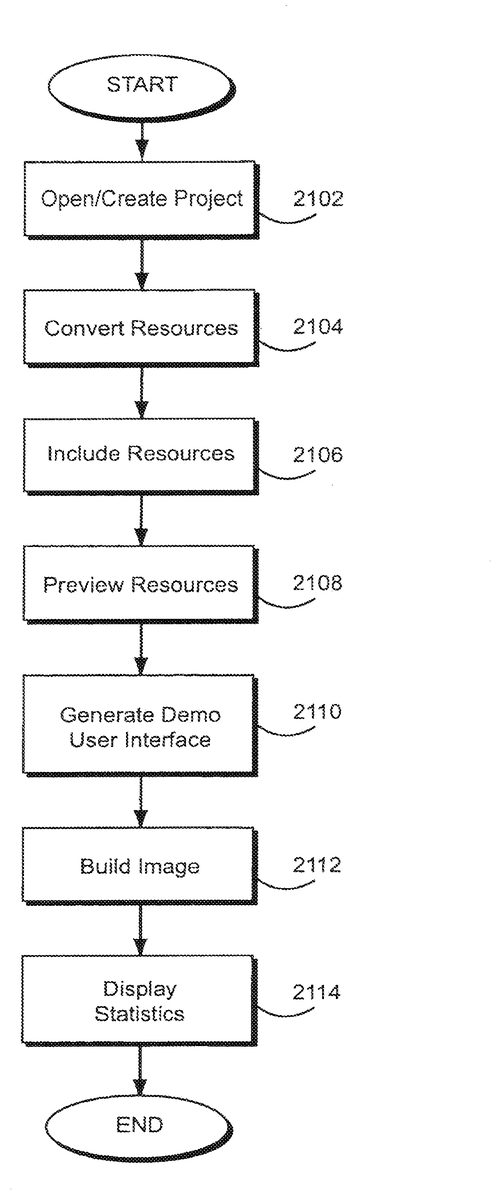
FIG. 14shows exemplary illustrative non-limiting program control steps. In one exemplary execution of tool1112, the software opens and/or creates a project (block2102). The tool1112then may convert resources as necessary (block2104), and include resources specified by the author (block2106). As explained above, such resources can include banner displays, audio clips, video or movie clips, executable game segments, and/or a variety of other multimedia elements.
The tool1112allows the user to preview any or all of the resources before the demo is built (block2108). Various conventional viewers, players etc. may be used to provide such preview function. The tool1112may also allow the author to create a menu-driven or other demo user interface to allow the end user to select between different demo options (e.g., watch a movie clip, play the game, select between different demo games, etc.). (block2110). Once the author is satisfied with the previews, he or she may control tool1112to build an image (block2112) that can be performed or executed by the target viewing platform. The tool1112logs and may display statistics concerning disk storage utilization, etc. (block2114). The tool1112may also “burn” the image onto an optical disk or other mass storage device, create a file for delivery over a network, or the like.
While the technology herein has been described in connection with exemplary illustrative non-limiting implementations, the invention is not to be limited by the disclosure. The invention is intended to be defined by the claims and to cover all corresponding and equivalent arrangements whether or not specifically disclosed herein.
Claims
- A method of creating an entertainment presentation for use on a video game playing platform, said method comprising: including and selecting resources comprising executable playable video game segments and reproducible movie clips for inclusion in said presentation;providing a menu driven user interface allowing an author to individually select and preview any or all of included said resources including said executable playable video game segments and said movie clips without first creating an integrated image;after said previewing, then building an integrated image including said executable playable video game segments for play on a video game playing platform and said movie clips resources converted into one or more formats for reproduction on the video game playing platform;and delivering said integrated image to said video game playing platform for playing by end users.
- The method of claim 1 wherein said resources include audio clips.
- The method of claim 1 wherein said delivering includes storing said integrated image on a portable mass storage device.
- The method of claim 1 further including defining the project including opening and adding to a pre-existing project.
- The method of claim 1 further including applying global and local settings.
- The method of claim 1 further including logging and maintaining statistics.
- The method of claim 1 further including automatically converting resources for inclusion in the integrated image.
- An authoring station for creating an entertainment demonstration presentation for viewing on a video game playing platform, said authoring station comprising: a resource file manager executed by at least one processor for defining a project and including and selecting resources including executable playable video game segments and movie clips within said project for inclusion in said demonstration presentation;a menu driven preview utility executed by said at least one processor that allows an author to individually preview any or all of included said resources including said executable playable video game segments and said movie clips without building a demonstration integrated image;and a build image utility executed by said at least one processor that after preview, then builds a demonstration integrated image for play on a video game playing platform by converting said executable playable video game segments and said movie clips for play on said video game playing platform.
- The system of claim 8 wherein said resources include audio clips.
- The system of claim 8 further including a storage device that stores said integrated image on a portable mass storage device for delivery to said viewing platform.
- The system of claim 8 wherein said defining resource file manager allows a user to open and add to a pre-existing project.
- The system of claim 8 further including a manager that applies global and local settings.
- The system of claim 8 further including a statistics logger.
- The system of claim 8 further including a conversion utility that automatically converts resources for inclusion on said integrated image.
Disclaimer: Data collected from the USPTO and may be malformed, incomplete, and/or otherwise inaccurate.